Revising
Drafting and revising want different tools. Drafting wants one Document and a low chrome bar. Revising wants the whole shape of a Folder, the ability to rearrange, and notes you can leave for tomorrow’s self.
Trove gives revision its own surfaces.
A Folio combines all the Documents inside a Folder into one continuous scroll. Each Document keeps its own file on disk and saves independently — the Folio is a read-and-edit lens, not a merge.
Open a Folder from the binder and click the Folio mode in the toolbar (or ⌘⇧F).
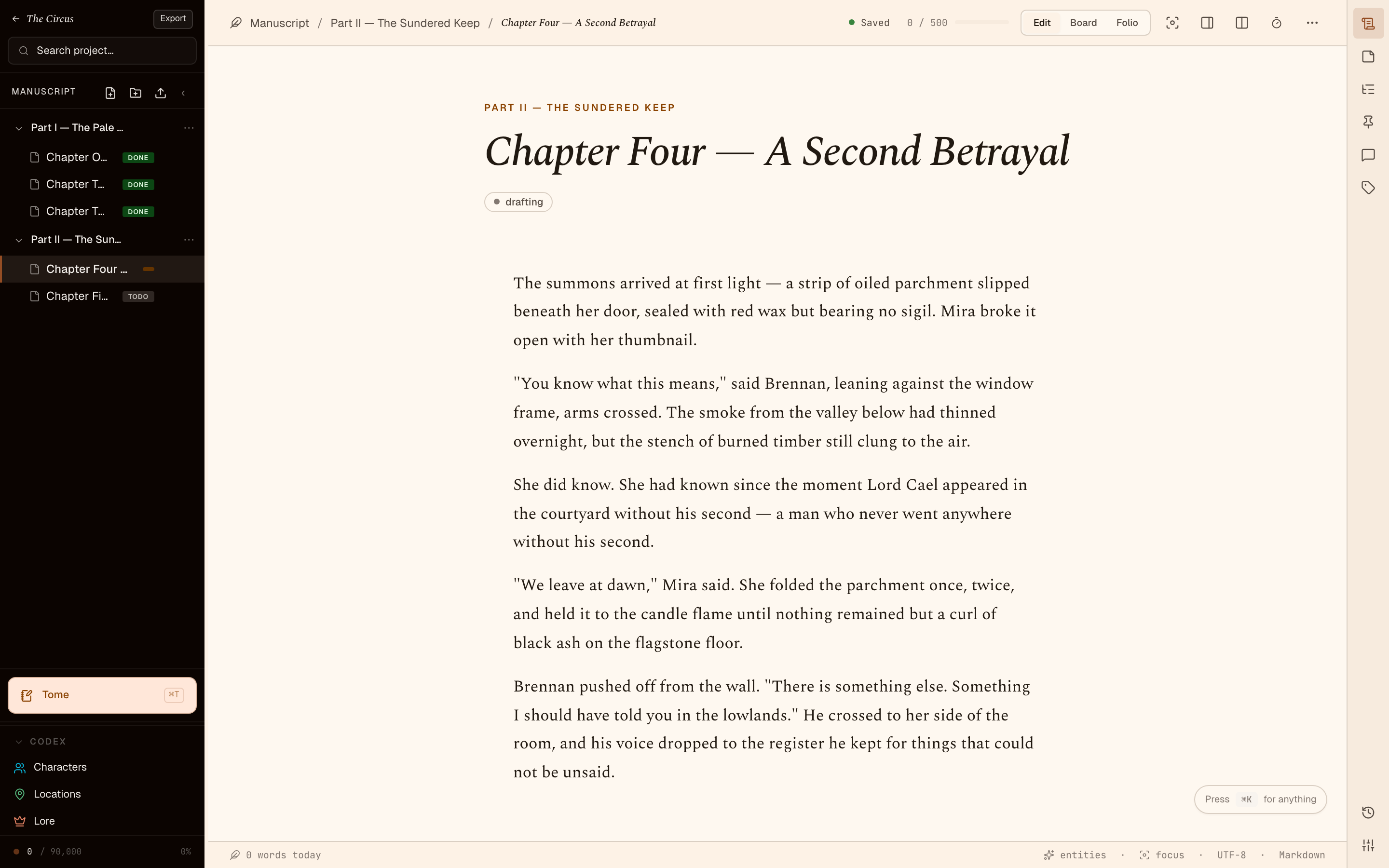
Use Folio when you want to:
- Read end-to-end without losing your place between Documents.
- Catch transitions between scenes — the seams between Documents become visible.
- Edit prose continuously without remembering which chapter you’re in.
Folio is what other tools call “Scrivenings” or “long view”. Trove calls it Folio. (See the glossary.)
Corkboard
Section titled “Corkboard”The Corkboard is a card-based layout view of a Manuscript. One card per Document, with the Document’s synopsis on the face.
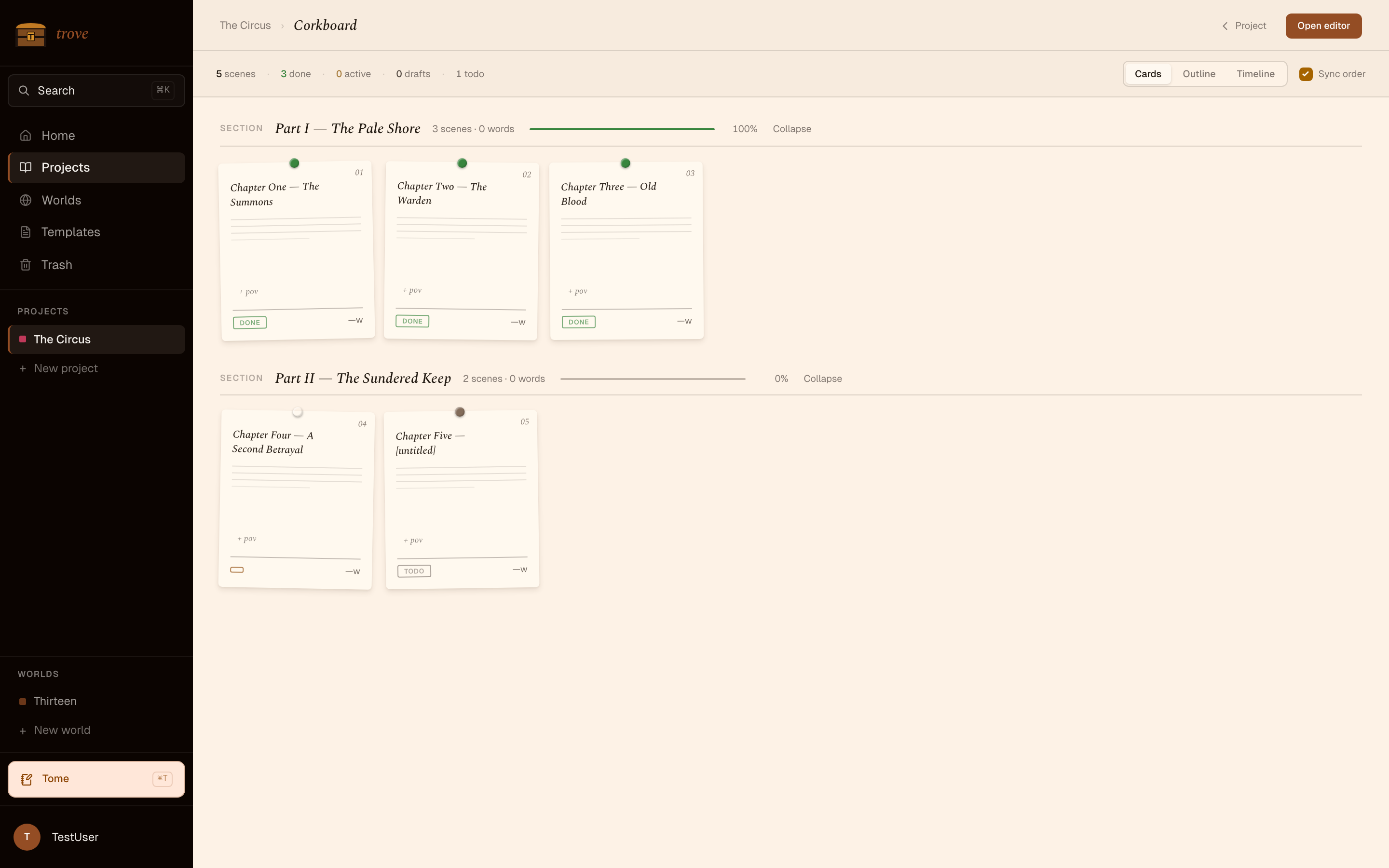
Drag cards to reorder Documents. Drag a card onto an Act strip to group it. Acts are visual groupings on the Corkboard; they map to Folders on disk.
The Corkboard is the right surface when you want to rearrange the spine of a Project — moving scenes between Acts, splitting a fat chapter, cutting a scene to a draft Folder.
Outline
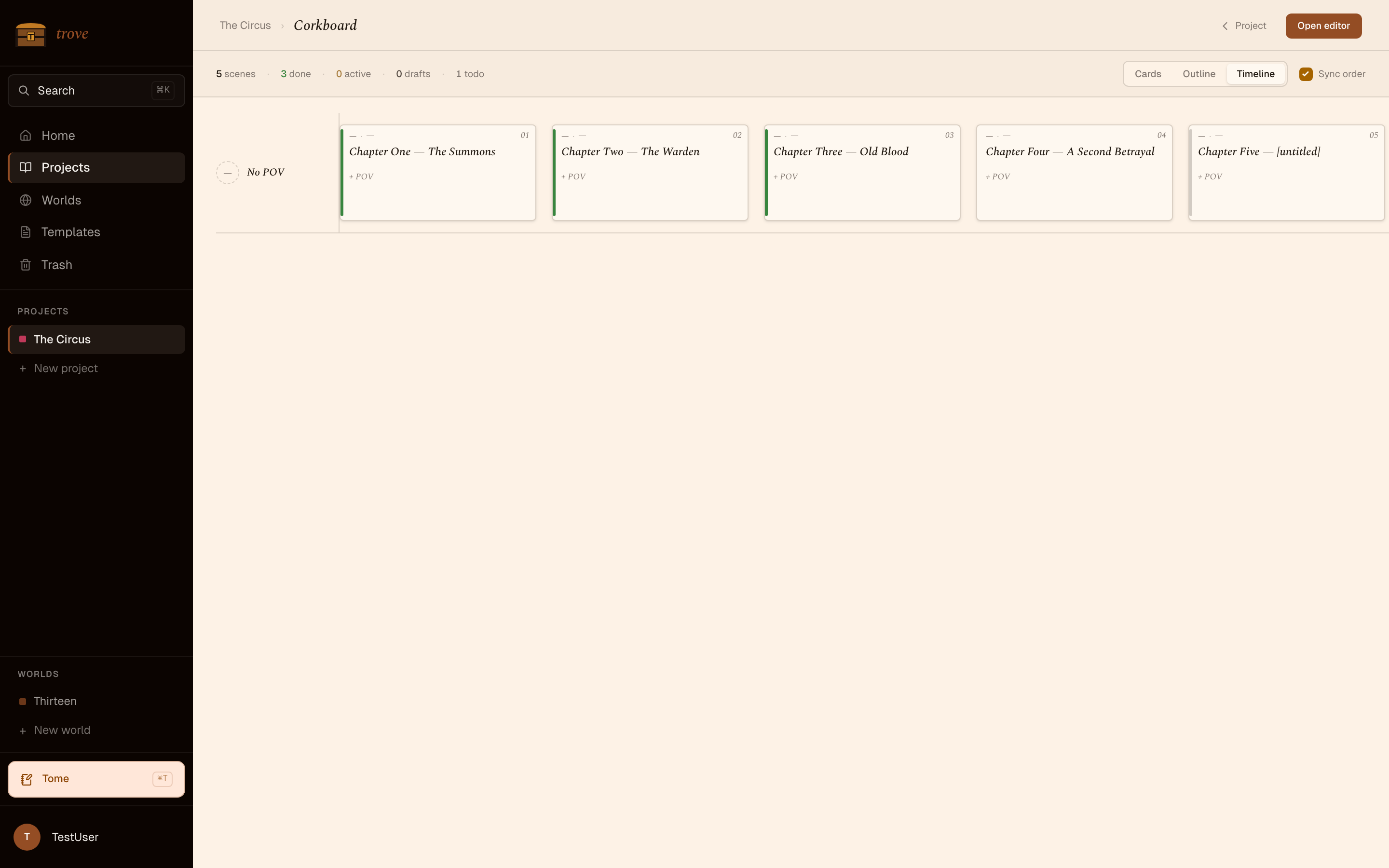
Section titled “Outline”The Outline is the structural counterpart to the Corkboard. Where the Corkboard shows cards, the Outline shows nested Documents with their status, word count, and synopsis in a flat table.
Open from the toolbar (Outline icon) or ⌘⇧O. Filter by status; jump to any Document by clicking.
Sticky Notes
Section titled “Sticky Notes”A Sticky Note is a small typed, coloured note attached to the editor for a single Document. Pin one with the Sticky icon in the toolbar.
Sticky Notes live in a .sticky.json sidecar next to the Document. They don’t appear in the prose, they don’t compile out. Good for:
- Revision TODOs (“fix the dialogue in the middle scene”).
- Continuity reminders (“check Tomas’s age”).
- Colour-coded passes (rose = cut, amber = expand, green = good as-is).
Comments
Section titled “Comments”A Comment is an inline annotation on a specific text range. The text stays put; the comment shows in the gutter and in the comments rail.
Use Comments when you want feedback to stay anchored to a specific sentence — and Sticky Notes when you want a free-floating reminder.
Both go away cleanly when you resolve or delete them. Neither leaks into the compiled output.
Snapshot before a big change
Section titled “Snapshot before a big change”Right-click a Document → Snapshot draft before you do something irreversible-feeling. The Draft is a read-only copy under .snapshots/. See Drafts and snapshots for the full picture.
Search
Section titled “Search”⌘K opens the command palette. Beyond just commands, it’ll search:
- Document titles.
- Entity names.
- (Coming) full-text Document content.
Hit Enter to jump straight there.