Your first Project
A Project in Trove is a manuscript container — one novel, novella, or short story collection. Here’s the ten-minute version of getting one going.
1. Open the dashboard
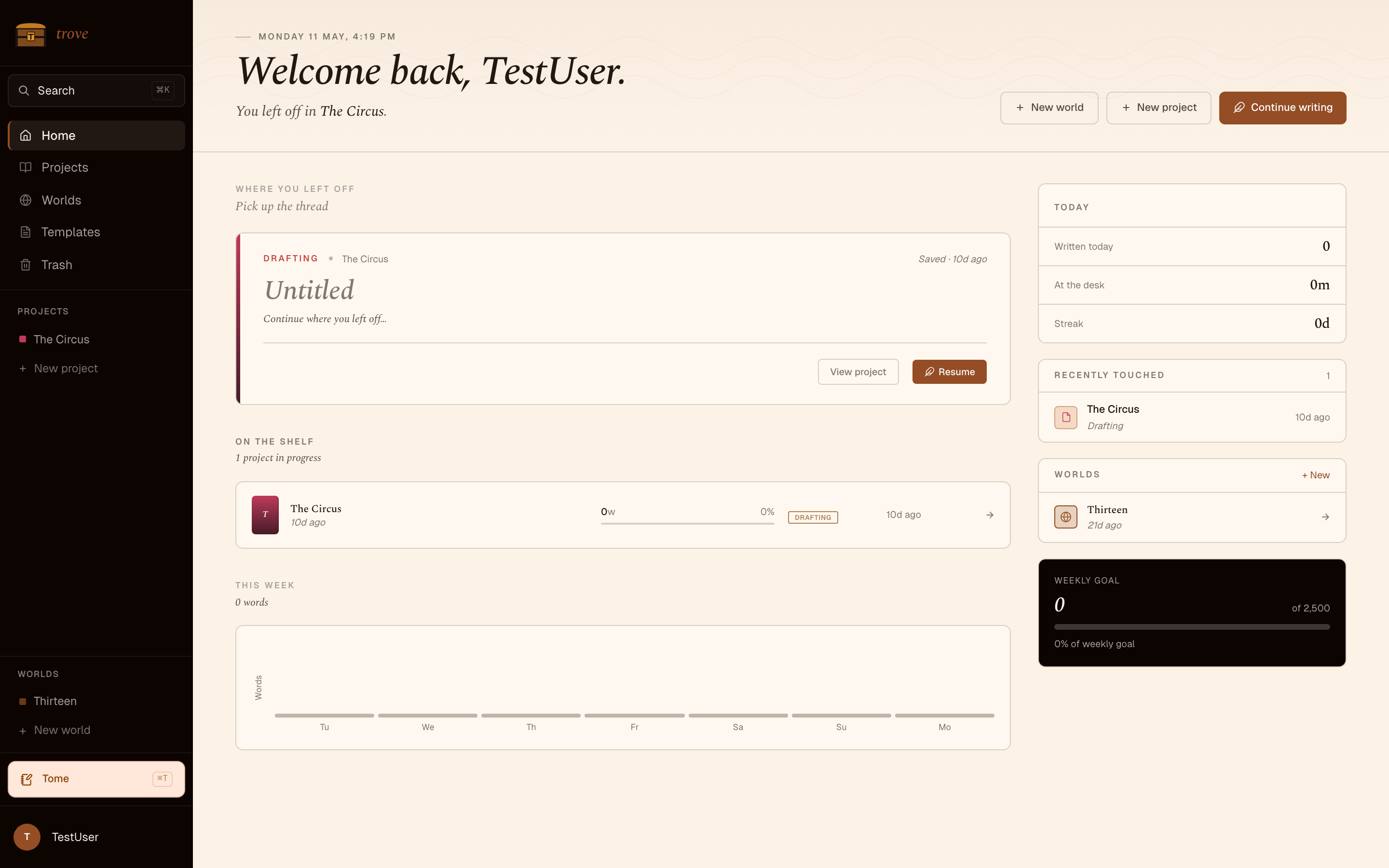
Section titled “1. Open the dashboard”When you launch Trove for the first time, the Dashboard shows all Projects and Worlds in your Trove root. It’s empty. Click New Project.
2. Name and stub it
Section titled “2. Name and stub it”Give the Project a name — say, Bridgepoint. Trove slugs the name for the folder (projects/bridgepoint/) but the display name can include any character. Pick a status (drafting, outlining, complete, or on-hold) and an optional word target.
The new Project opens with an empty Manuscript. The binder on the left shows just a “Manuscript” root.
3. Add Folders and Documents
Section titled “3. Add Folders and Documents”Right-click in the binder (or use the + button at the foot) to create:
- Folders to group structurally — Act One, Act Two, Act Three; or Part I / Part II.
- Documents to write in — Chapter One, Chapter Two, …
Drag items to reorder. Drop a Document on a Folder to nest it. Every Folder and Document corresponds to a real entry on disk — manuscript/act-one/chapter-01.md, manuscript/act-one/chapter-02.md.
4. Write
Section titled “4. Write”Click into a Document and start writing. The editor is Tiptap-based — Markdown shortcuts (# , **bold**, > quote) work as you type. Saves are automatic.
Use Sprints (sidebar → timer icon) when you want a timed push with a word goal. The Session tracker rolls Sprint deltas into daily and weekly totals.
5. Link a World
Section titled “5. Link a World”If you want characters and locations to be shareable across more than one Project — say you’re writing two novels in the same setting — create a World:
- From the Dashboard, New World.
- Name it (
riverlands,the-eastern-march). - Open your Project’s manifest and set
worldPath = "../../worlds/<slug>".
Now Entities you create in the World show up in this Project’s Atlas. Type [[Character Name]] in any Document to insert a link.
6. See it in different views
Section titled “6. See it in different views”The same files, different lenses:
- Folio — combine a Folder’s Documents into one continuous scroll. Good for reading a chapter end-to-end without losing track of where each scene lives on disk.
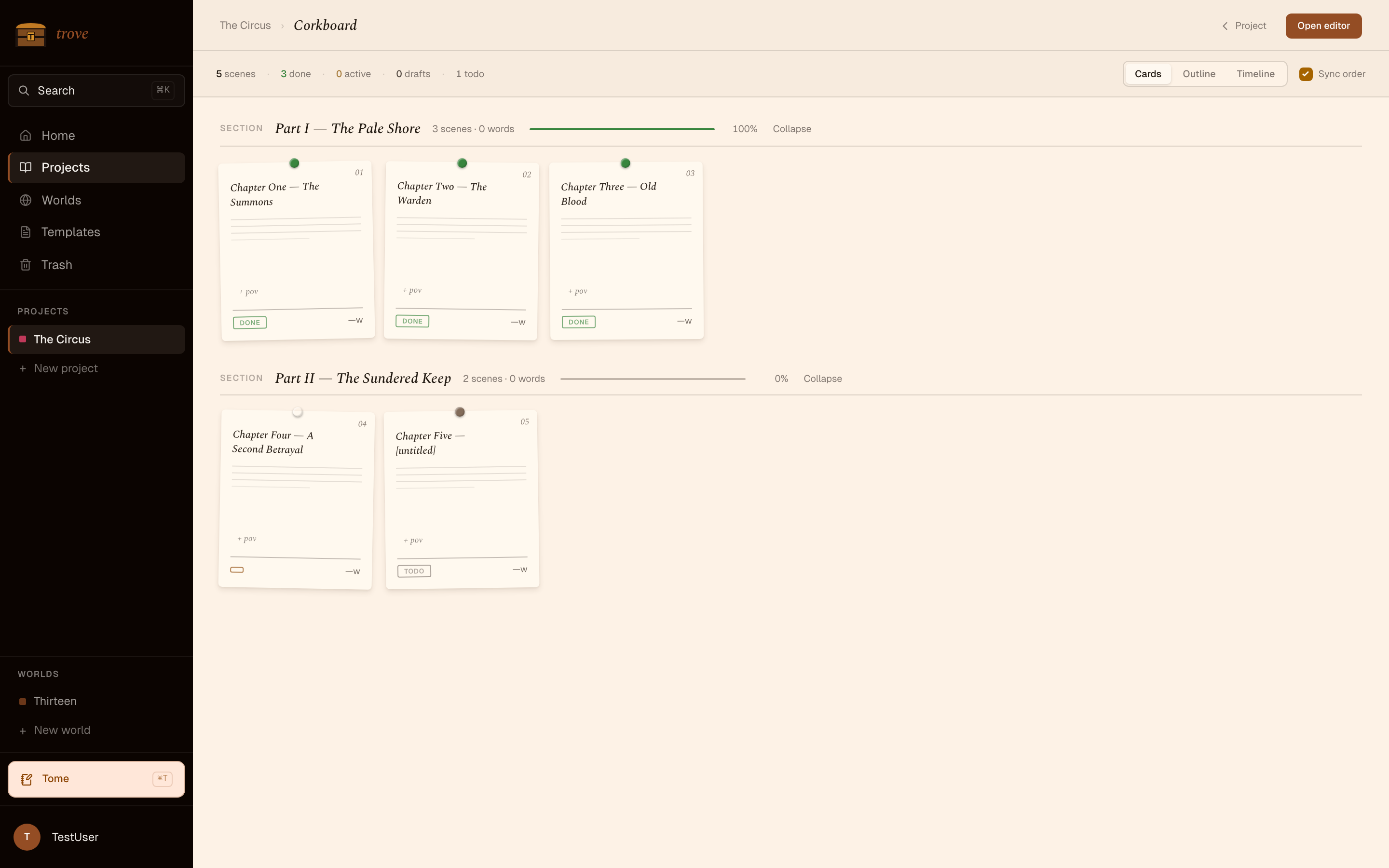
- Corkboard — index-card view with one card per Document. Drag to reorder. Group into Acts.
- Atlas — browse Entities by Type.
7. Snapshot before you cut
Section titled “7. Snapshot before you cut”About to rewrite a chapter? Right-click the Document → Snapshot draft. Trove writes a read-only copy to .snapshots/ with a timestamp. You can compare or restore from Drafts later.
8. Compile when you’re ready
Section titled “8. Compile when you’re ready”When you want a single file to share, Compile the Manuscript:
- Markdown — concatenated, structure preserved.
- DOCX — for editors and beta readers.
- EPUB — for reading apps.
- ZIP bundle — everything in one archive.
That’s it. Now go write.